
Who this is for: Lumberyards, independent suppliers and distributor branches that sell roofing and exterior materials. Screens were captured from the StormBuddy portal on a new, pending company, so lists start empty.
Learn about the program
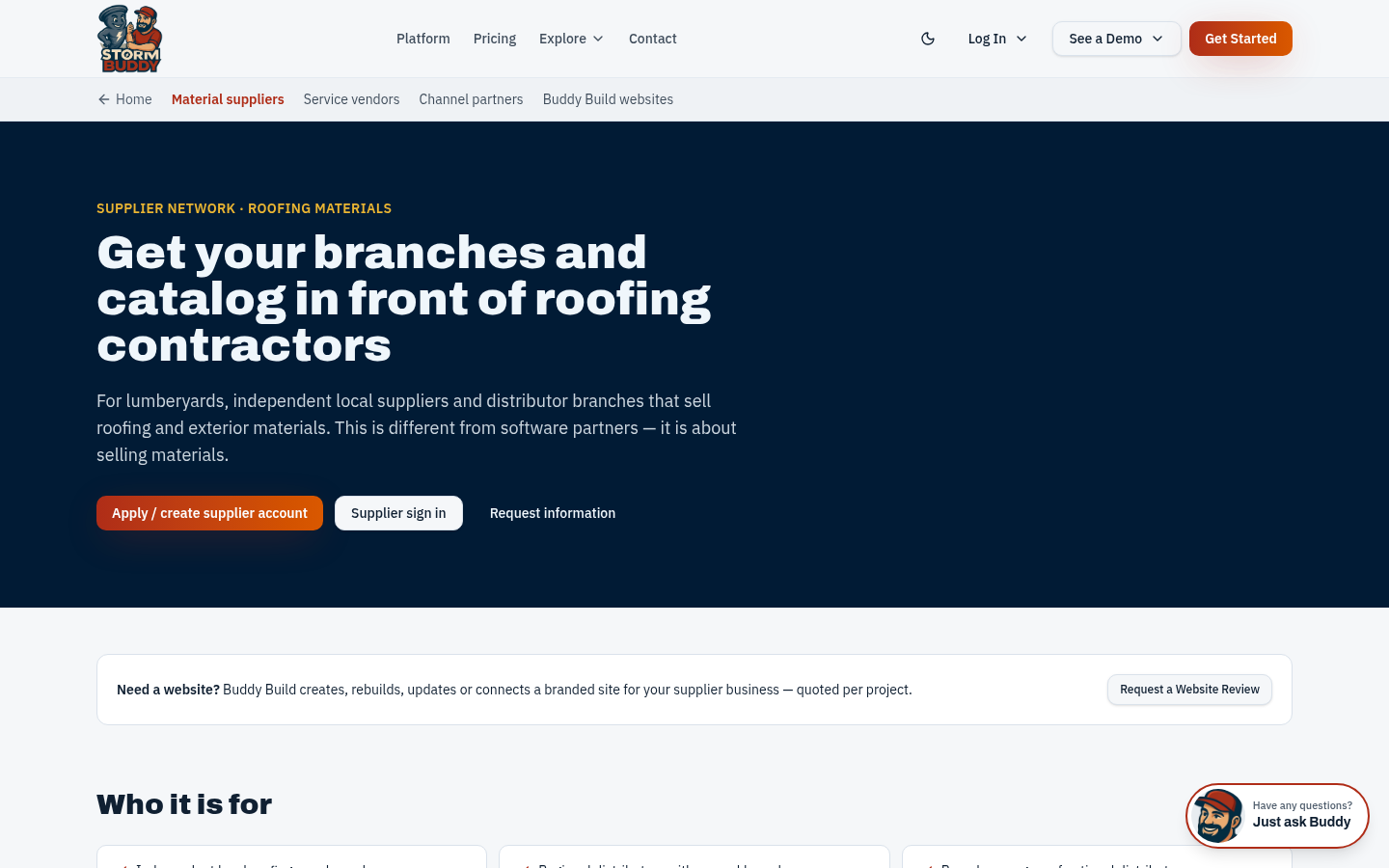
The Material Suppliers page explains who the network is for, what is available today and what is subject to setup. Use "Apply / create supplier account" to start, or "Request information" if you want to talk first.
Create your account or sign in
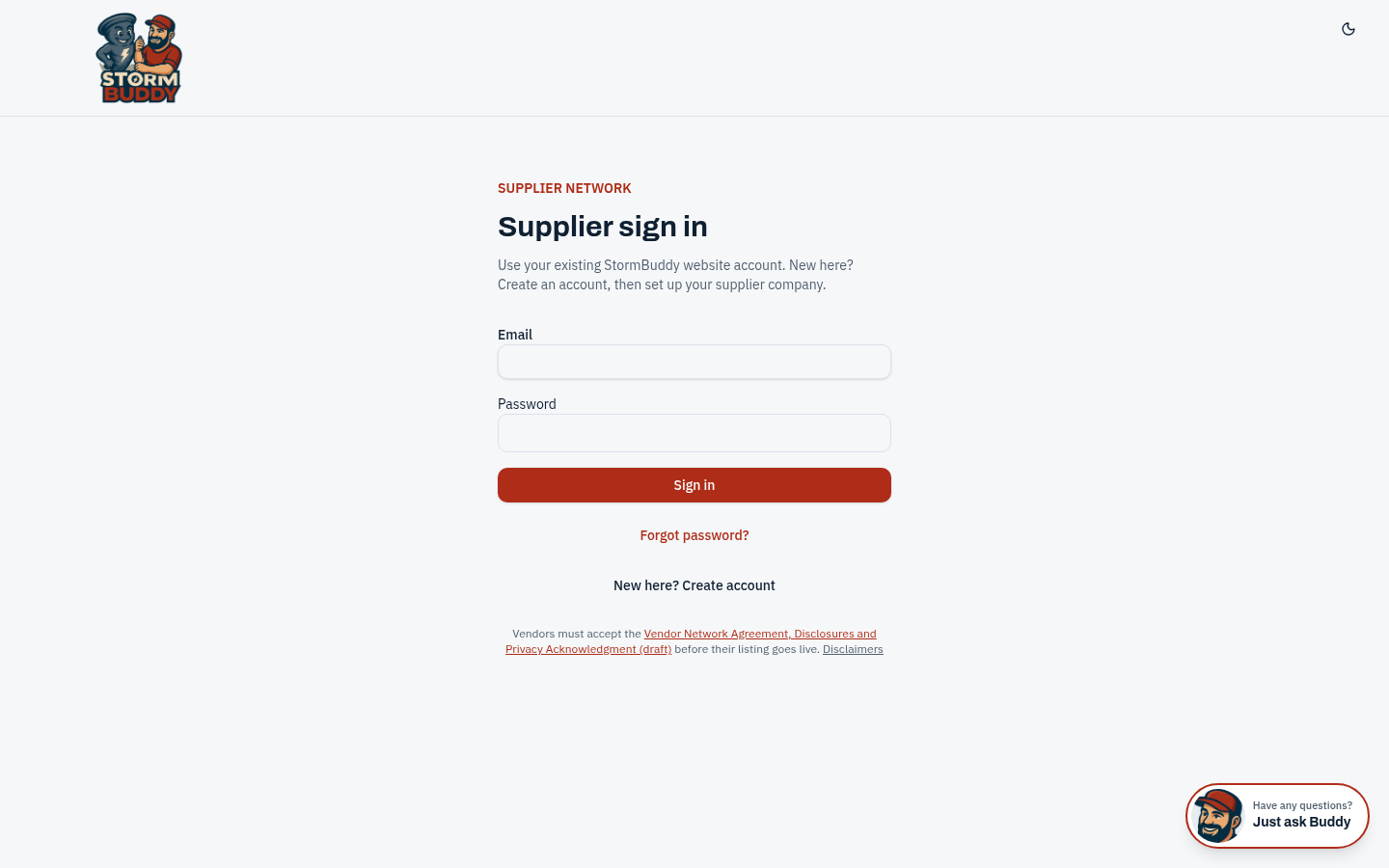
Go to Supplier sign in. New companies choose "New here? Create account", enter a company name and become that company's Owner. Existing staff sign in with their email and password (8+ characters). Employees join through an emailed invitation link instead of creating their own company.
- Forgot your password? Use "Forgot password?" on the sign-in screen.
- Your company stays Pending until StormBuddy reviews it.
Command center
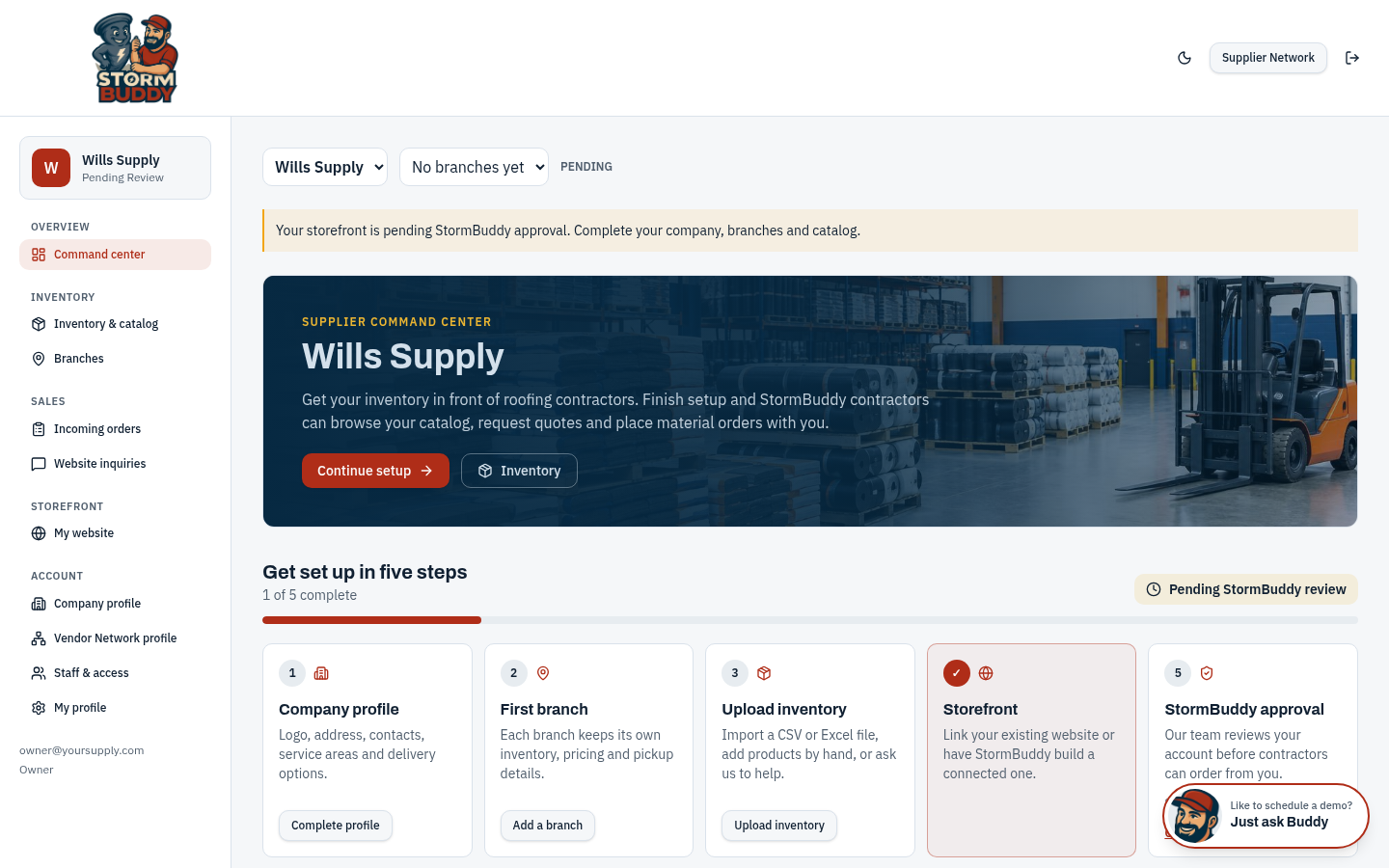
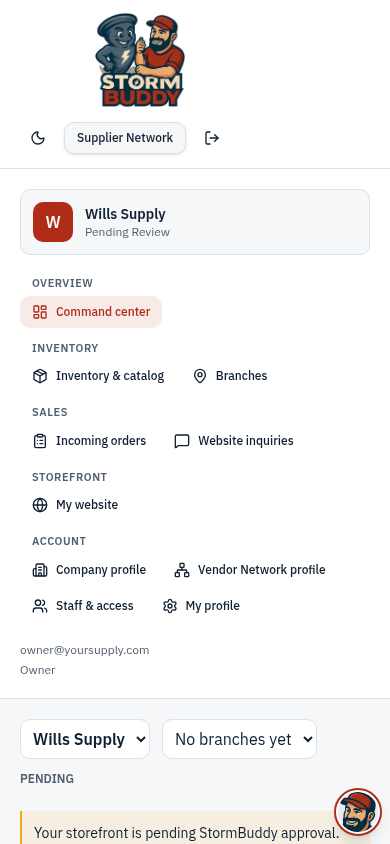
Your home screen. The banner shows your approval status, and "Get set up in five steps" tracks Company profile, First branch, Upload inventory, Storefront and StormBuddy approval. The left menu reaches every section; the company and branch pickers at the top switch which location you are working on.
Company profile
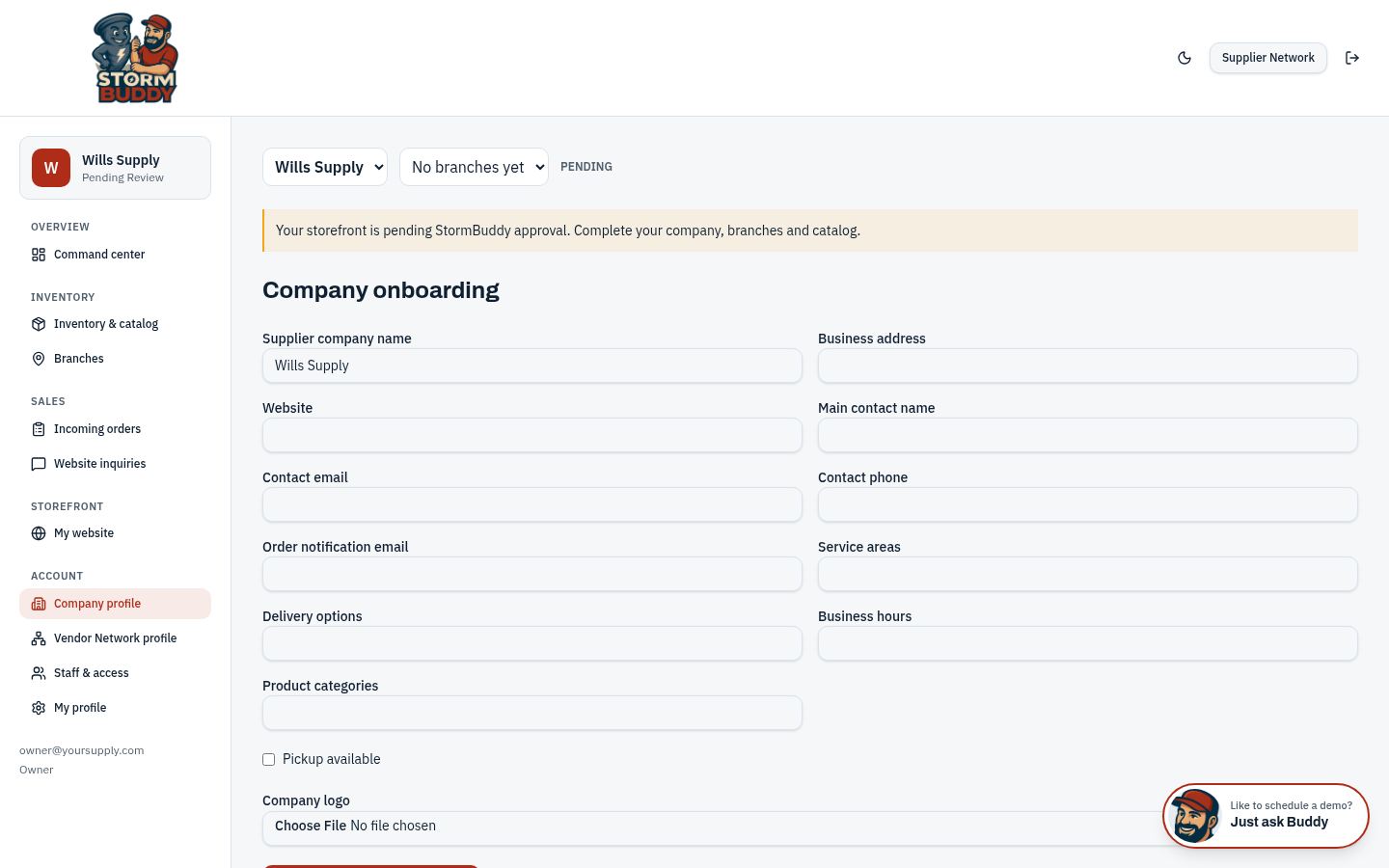
Fill in your company name, address, website, main contact, contact email and phone, and the order notification email that should hear about new orders. Add service areas, delivery options, business hours, product categories, whether pickup is available, and upload your logo.
Add branches
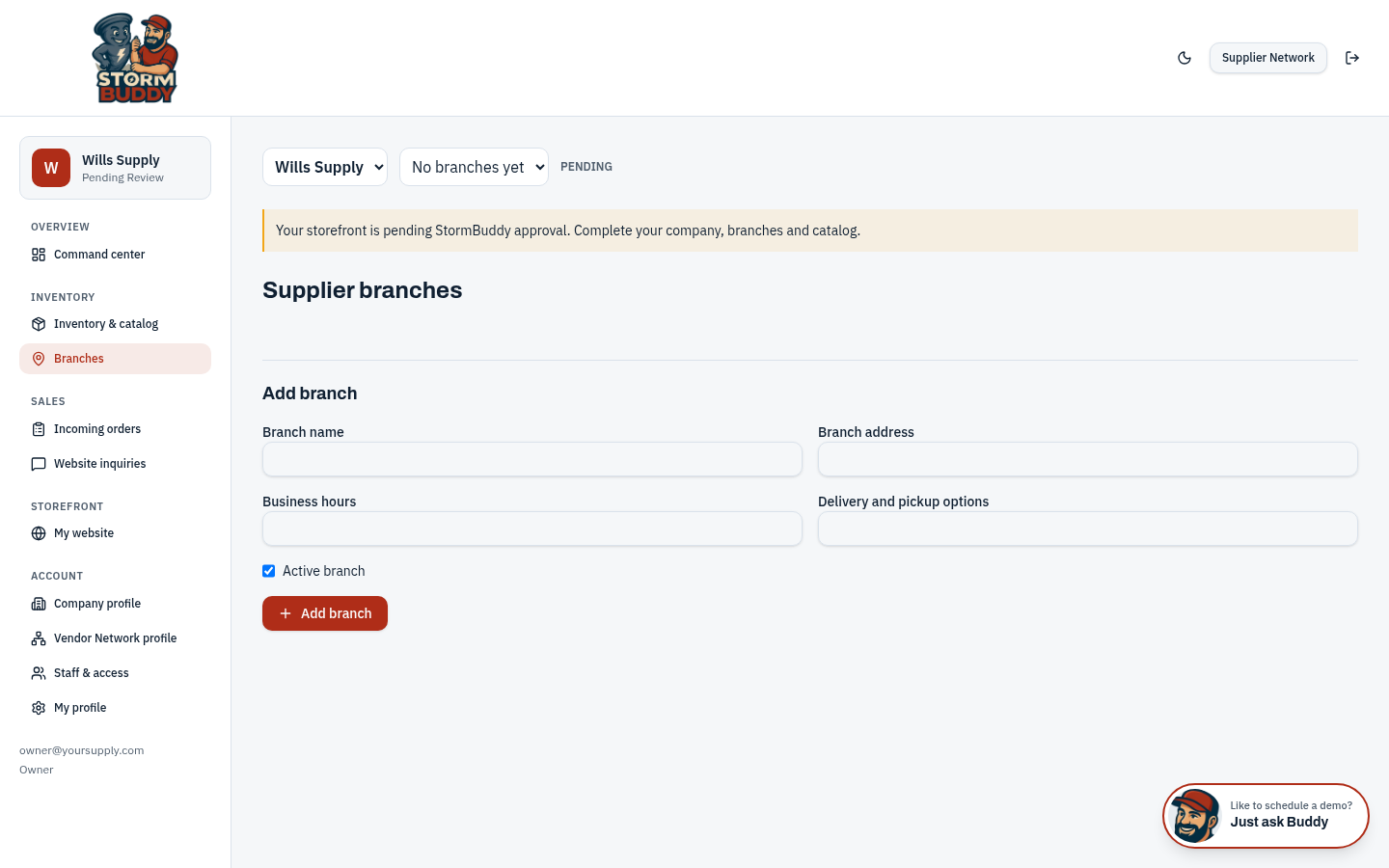
Every product and every order belongs to a branch. Add each location with its name, address, hours and delivery/pickup options, and mark it active. Inactive branches stay on file but are hidden from contractors.
Load your inventory and catalog
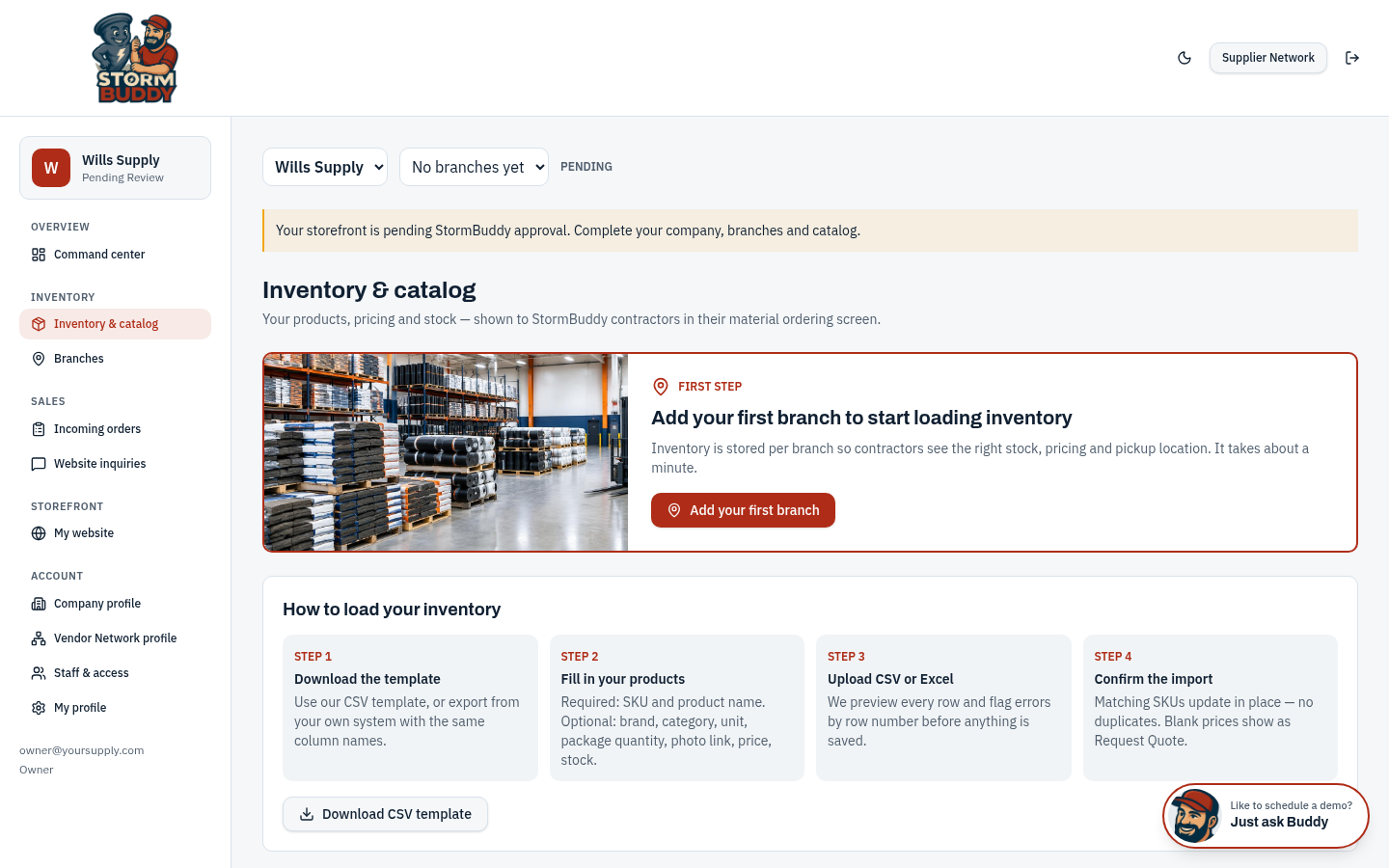
Pick a branch, then download the CSV template or upload your own CSV or Excel file. Required columns are sku and name; price, brand, manufacturer, category, description, unit, package quantity, product image, inventory quantity and availability are optional. StormBuddy previews the file and flags errors by row number before anything is imported.
- Re-uploading the same SKU updates the product instead of duplicating it.
- Leave price blank to show "Request Quote" to contractors.
- You can also add or edit single products by hand.
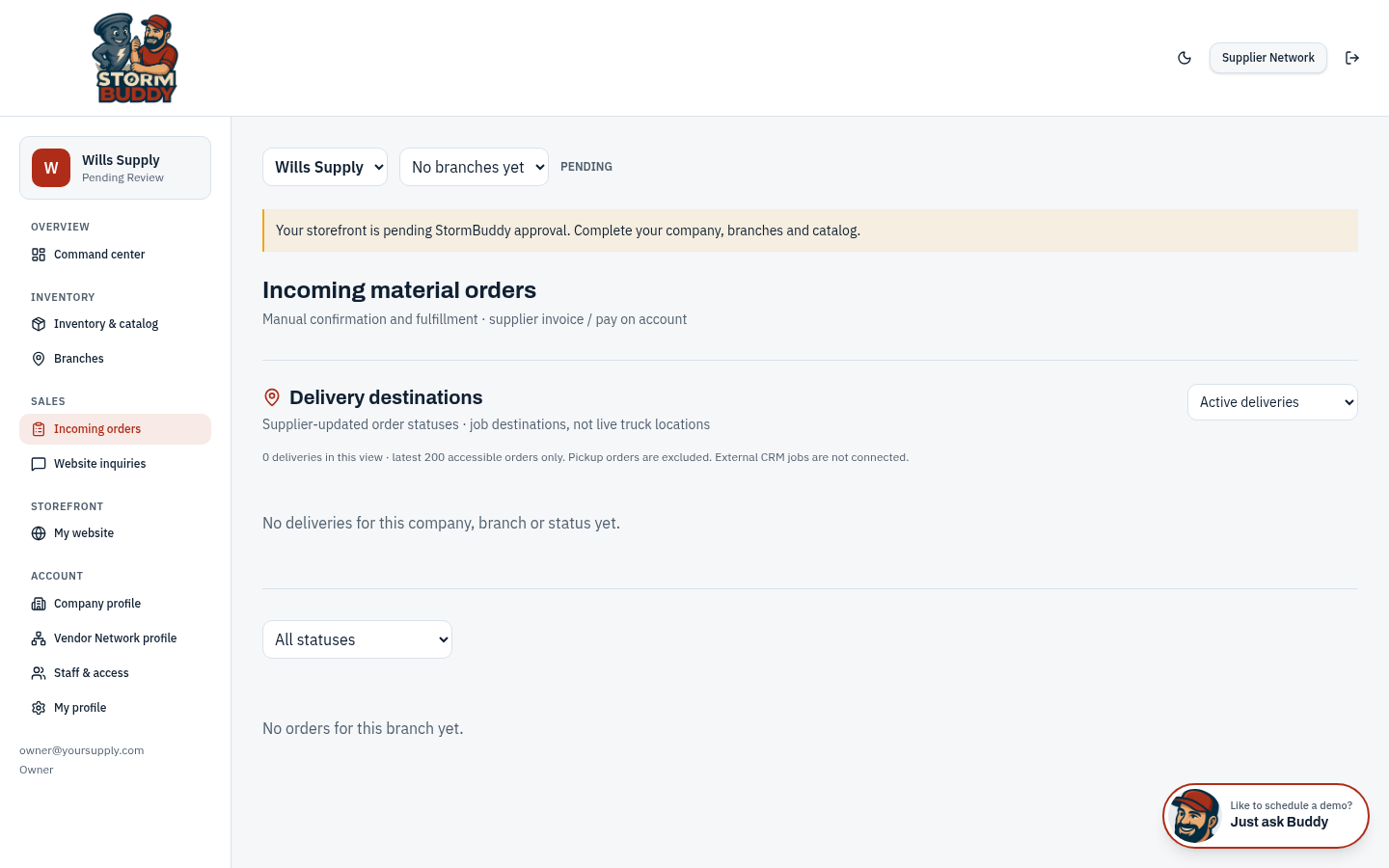
Handle incoming orders
Contractor orders and quote requests arrive here per branch. Move each order through New, Awaiting Confirmation, Quote Requested, Confirmed, Preparing, Ready for Pickup, Out for Delivery, Delivered and Completed (or Cancelled). Every change is kept in the order history. Delivery destinations show where active orders are going — not live truck tracking.
- Payment is on your normal terms: supplier invoice or pay on account. StormBuddy does not charge contractors' cards for material orders.
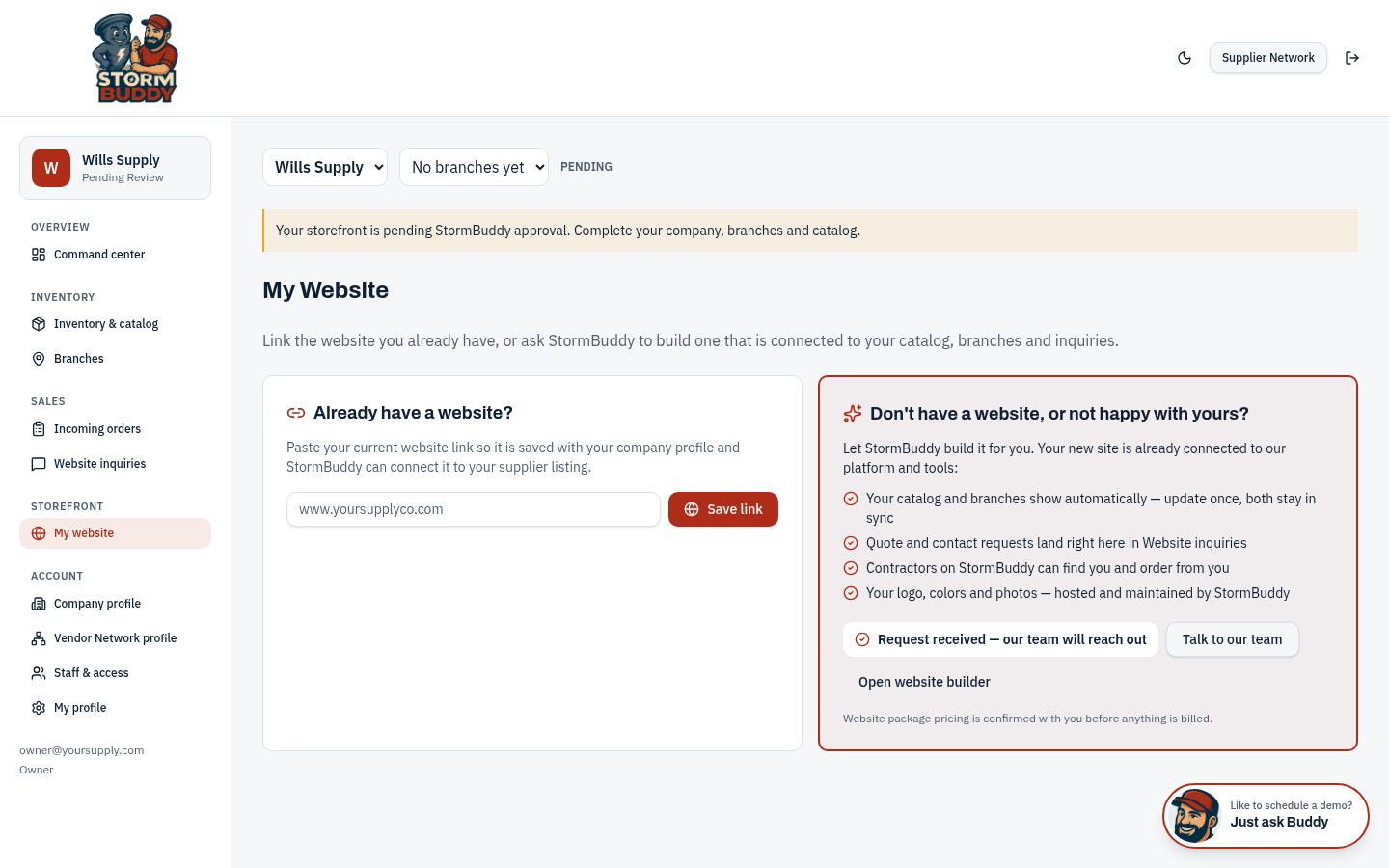
Your website
Link the website you already have, or ask StormBuddy to build one through Buddy Build that shows your catalog and branches and sends quote and contact requests to Website inquiries. Website packages are quoted — nothing is charged until you confirm.
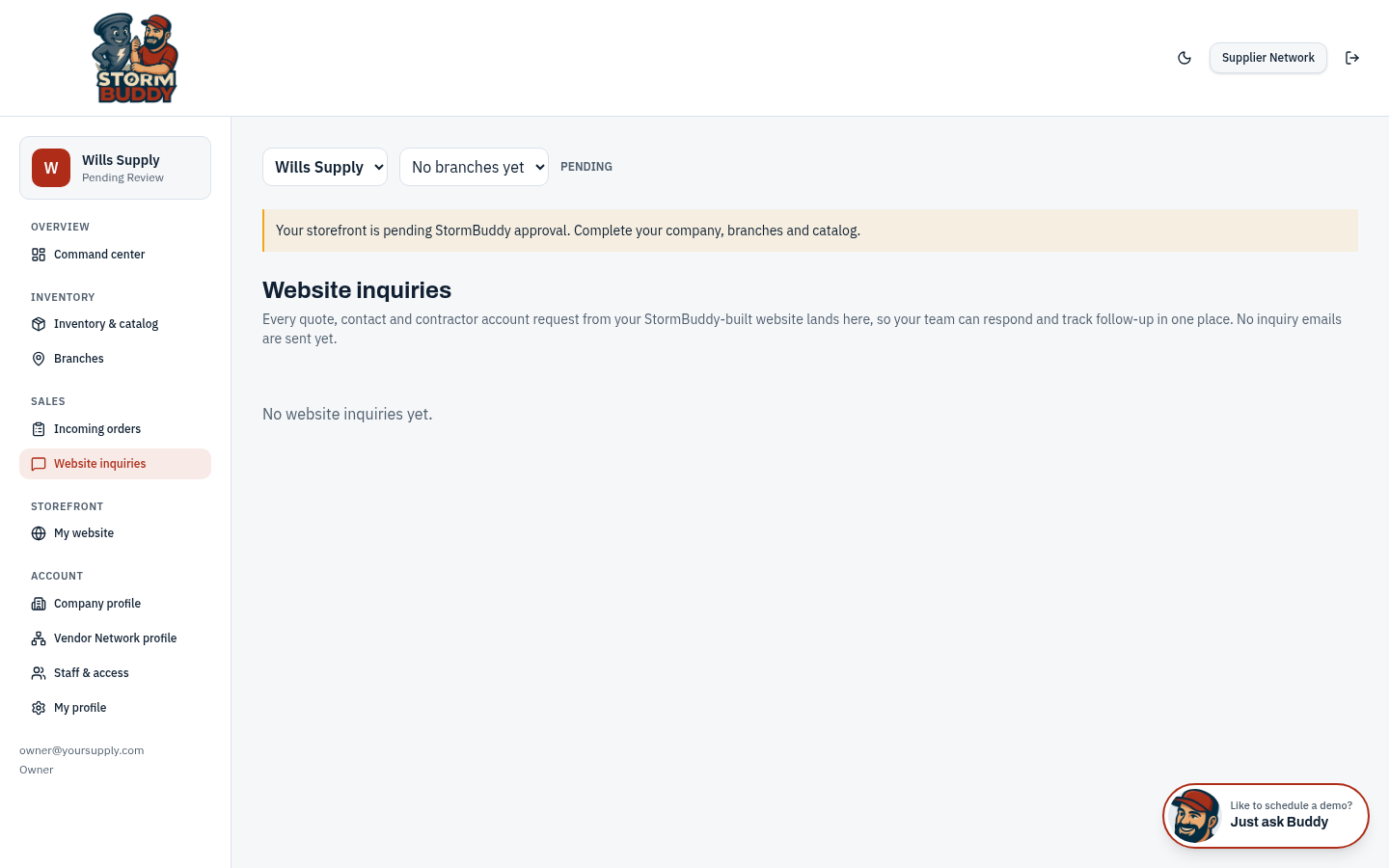
Website inquiries
Quote, contact and contractor account requests from your StormBuddy-built website land here so your team can respond and track follow-up in one place.
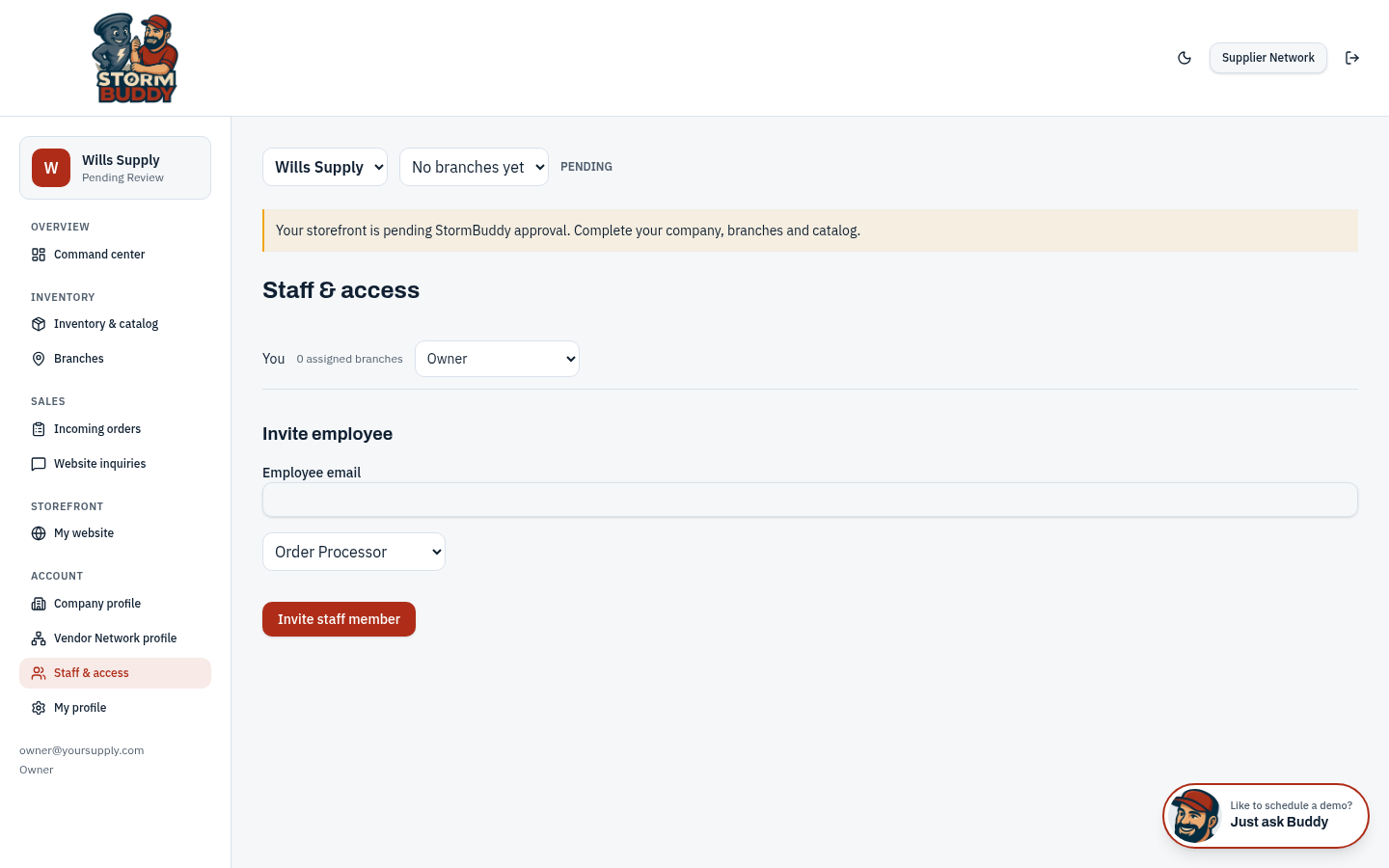
Staff and access
Invite employees by email and give each a role: Owner, Administrator, Branch Manager, Sales Rep, Warehouse Staff or Order Processor, plus the branches they work at. Roles limit what people can change — for example warehouse staff cannot edit prices.
My profile
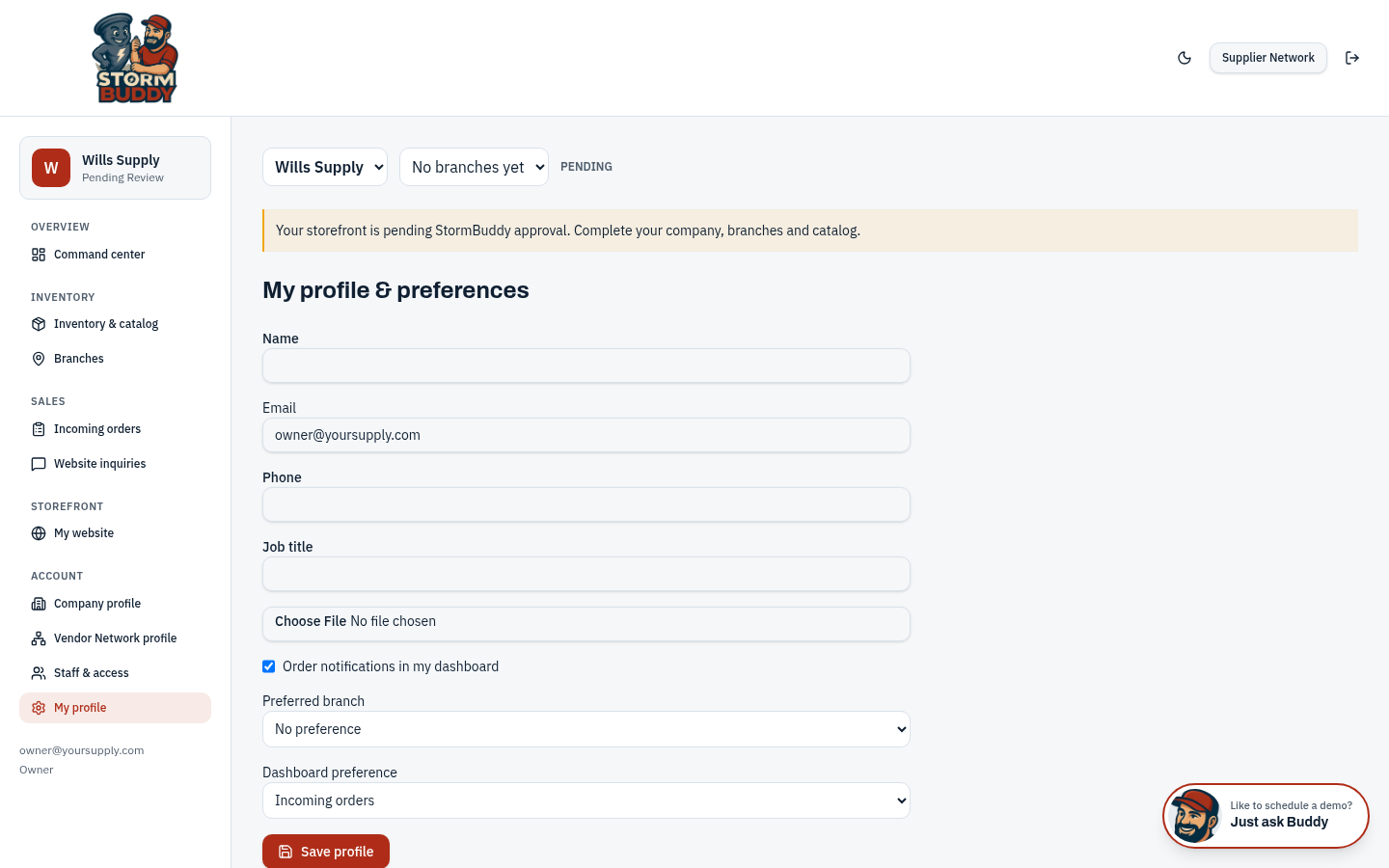
Each person sets their name, phone, job title and photo, whether they get order notifications in the dashboard, their preferred branch and which screen opens first.
What contractors see
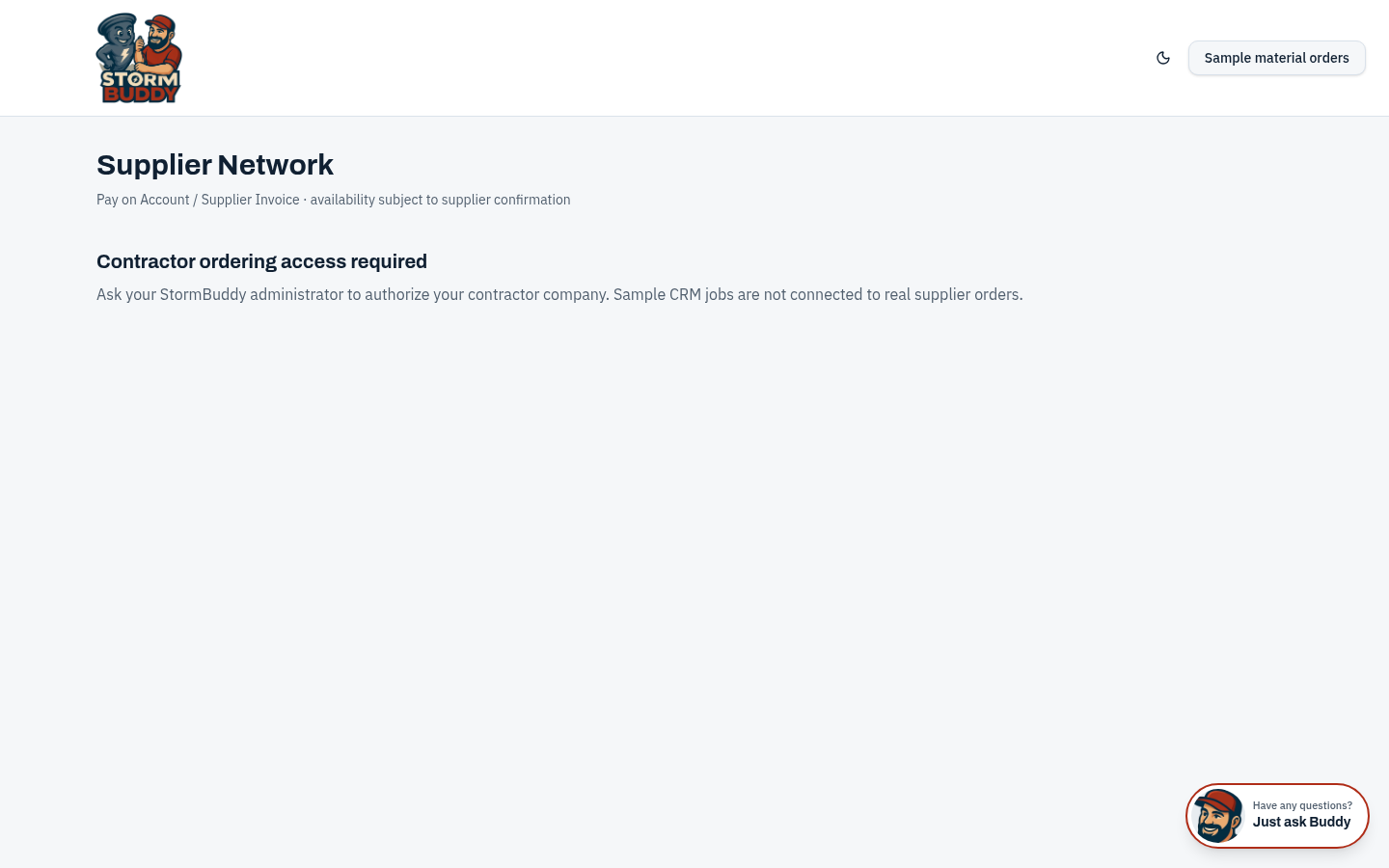
Approved contractors open Material ordering in StormBuddy, choose an authorized supplier and branch, browse your catalog and send an order or quote request. Contractors only see suppliers they are authorized for, and you never see other suppliers' prices or customers.
Questions
Ready? Back to the program page to apply or request information.